👉 Join the conversation on Discord
Each lesson on this learning site has its own post in the foundations-course channel of the CAI Discord server. If you have any question about this video, feel free to post and we'll try to help out!
A closer look at private keys and certificates
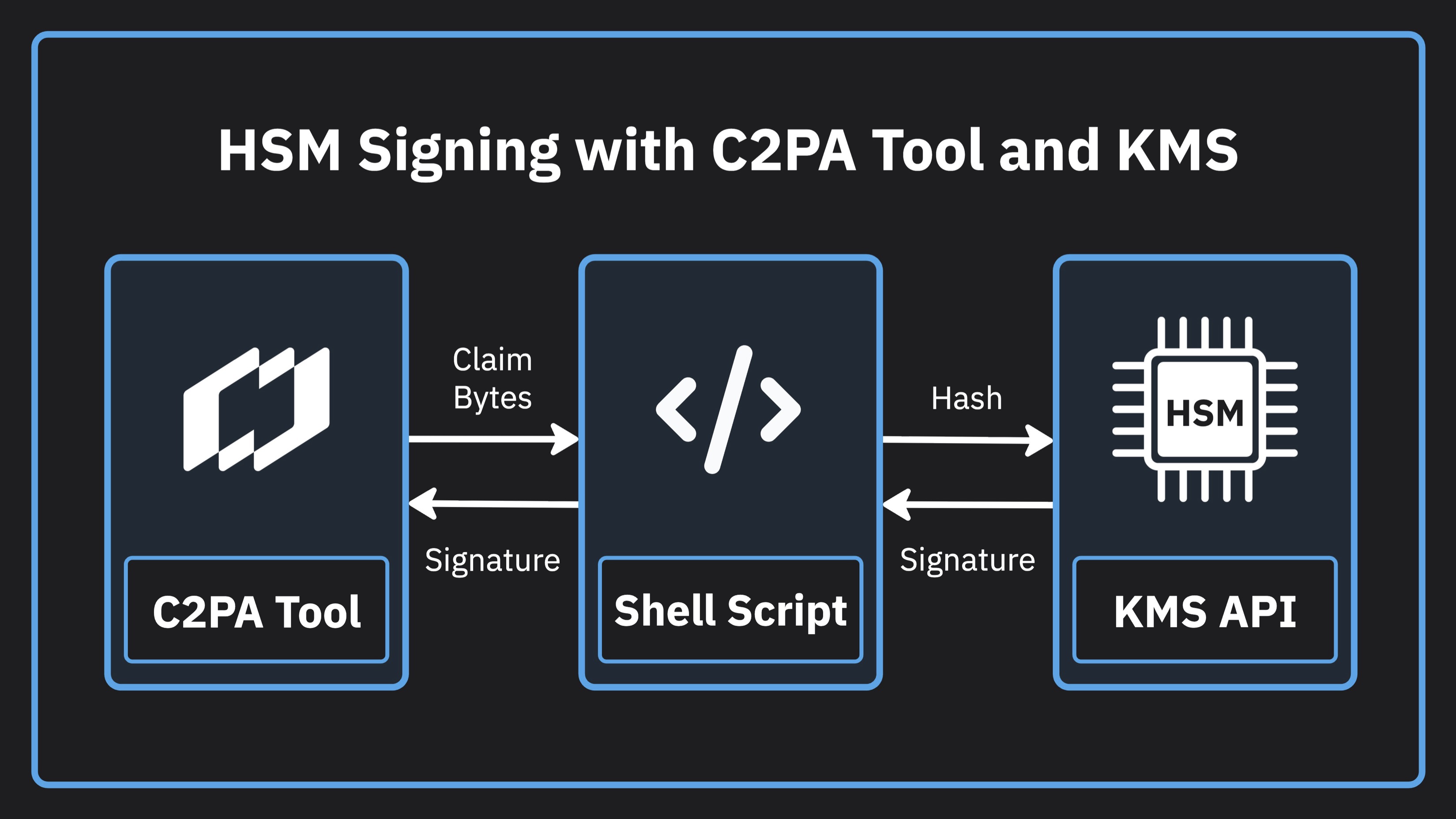
In this lesson, we’re going to look at how to generate a Hardware Security Module (HSM) backed private key using a cloud Key Management Service (KMS). An HSM, is a secure physical device whose job is to store cryptographic keys and perform signing operations without the key leaving the device. This key isn’t visible to you, your code, or even the cloud provider. From there, we’re going to go back to the first lesson where we pretended to be signing an image at the time of creation, but this time we’ll sign the asset using an HSM stored private key.
Example use case for this lesson
Step CLI
This tutorial uses Step CLI to help us out with common PKI or X509 related tasks. In particular, we use it to sign a CSR with our HSM stored private key. We also use it to set up a local development root Certificate Authority (CA) to issue test certificates that can be used with our HSM stored private key.
Visit the Step CLI GitHub repo.
Before You Begin
If you're following along, you will want to conifgure the following things:
- Google Cloud project configured
- Google Cloud KMS enabled
- gcloud CLI installed and signed in with Application Default Credentials (ADC) enabled
- Homebrew installed
- C2PA Tool installed
Note: This tutorial uses Homebrew to install Step CLI and Go on macOS. On Windows, you can install these using Chocolatey (choco).
Test Certificate Issuance
The example in the video uses a test signing certificate with an EKU of emailProtection to be consistent with the other test certificates from the SDK that are used in this series. Production certificates issued to products on the C2PA Conforming Products List will use an EKU of claimSigning (1.3.6.1.4.1.62558.2.1), which is specific to C2PA. If you wish to use this EKU for testing certificates, you can substitute this command when creating your certificate template.
# Create a claimSigning certificate template
cat > claim-signing-template.json << 'EOF'
{
  "subject": {{ toJson .Insecure.CR.Subject }},
  "keyUsage": ["digitalSignature"],
  "unknownExtKeyUsage": ["1.3.6.1.4.1.62558.2.1"],
  "basicConstraints": {
      "isCA": false
  }
}
EOF
Code from the lesson
# Commands from the tutorial

# Create the keyring
gcloud kms keyrings create demo-keyring \
  --location us-central1 \
  --project your-project

# Create an EC P-384 signing key
gcloud kms keys create my-signing-key \
  --location us-central1 \
  --keyring demo-keyring \
  --project your-project \
  --purpose asymmetric-signing \
  --default-algorithm ec-sign-p384-sha384 \
  --protection-level hsm

# Check the key
gcloud kms keys describe my-signing-key \
  --location us-central1 \
  --keyring demo-keyring \
  --project your-project

# Install step CLI
brew install step

# Install Go if you don't have it already
brew install go

# Install the Step CLI KMS plugin
go install github.com/smallstep/step-kms-plugin@latest

# Write a CSR template file
cat > csr-template.json << 'EOF'
{
  "subject": {
    "commonName": "Demo App",
    "organization": ["Demo App Organization"]
  }
}
EOF

# Use Step CLI to crate the CSR
step certificate create \
  --csr \
  --kms 'cloudkms:' \
  --key 'projects/your-project/locations/us-central1/keyRings/demo-keyring/cryptoKeys/my-signing-key/cryptoKeyVersions/1' \
  --template csr-template.json \
  'example.com' csr.pem

# Verify our CSR with OpenSSL
openssl req -in csr.pem -noout -text -verify

# Create a local root development CA with Step CLI
step certificate create 'My Root CA' root-ca.crt root-ca-key.pem --profile root-ca

# Create an S/MIME certificate template
cat > smime-template.json << 'EOF'
{
  "subject": {{ toJson .Insecure.CR.Subject }},
  "keyUsage": ["digitalSignature"],
  "extKeyUsage": ["emailProtection"],
  "basicConstraints": {
      "isCA": false
  }
}
EOF

# Issue the CSR using the CSR and our local root CA using Step CLI
step certificate sign \
  --template smime-template.json \
  csr.pem root-ca.crt root-ca-key.pem > cert.pem

# Check our certificate using OpenSSL
openssl x509 -in cert.pem -text -noout

# C2PA Tool command that uses our shell script to get the HSM signature
./c2patool capture-unsigned.jpg \
  --settings settings.toml \
  --manifest manifest.json \
  --signer-path ./signer \
  --reserve-size 20000 \
  --output kms-signed.jpg
# Shell script

#!/bin/sh
CLAIM_BYTES=$(mktemp)
SIGNATURE=$(mktemp)
trap 'rm -f "$CLAIM_BYTES" "$SIGNATURE"' EXIT

cat > "$CLAIM_BYTES"

gcloud kms asymmetric-sign \
  --project=your-project \
  --location=us-central1 \
  --keyring=demo-keyring \
  --key=my-signing-key \
  --version=1 \
  --digest-algorithm=sha384 \
  --input-file="$CLAIM_BYTES" \
  --signature-file="$SIGNATURE" \
  --quiet

cat "$SIGNATURE"
// manifest.json

{
  "alg": "es384",
  "sign_cert": "cert.pem",

  "claim_generator_info":[{
    "name": "Demo Camera App",
    "version": "1.0.0"
  }],

  "assertions": [
    {
      "label": "c2pa.actions.v2",
      "data": {
        "actions": [
          {
            "action": "c2pa.created",
            "digitalSourceType":
              "http://cv.iptc.org/newscodes/digitalsourcetype/digitalCapture"
          }
        ]
      }
    }
  ]
}
# settings.toml

[builder]

created_assertion_labels = [
  "c2pa.actions",
  "c2pa.thumbnail.claim",
  "c2pa.thumbnail.ingredient",
  "c2pa.ingredient"
]

[builder.actions.auto_created_action]
enabled = false

[builder.actions.auto_opened_action]
enabled = true

[trust]

trust_anchors = """

# local root certificate that gets made in the tutorial goes here

"""
Getting more help
You can access the CAI Docs to learn more about implementing Content Credentials. If you have questions about this video, there is a forum set up on the CAI Discord for each video. You can access discussion for this video here. We would love to see your questions there!